SeoSpidie
See your site the way search engines do

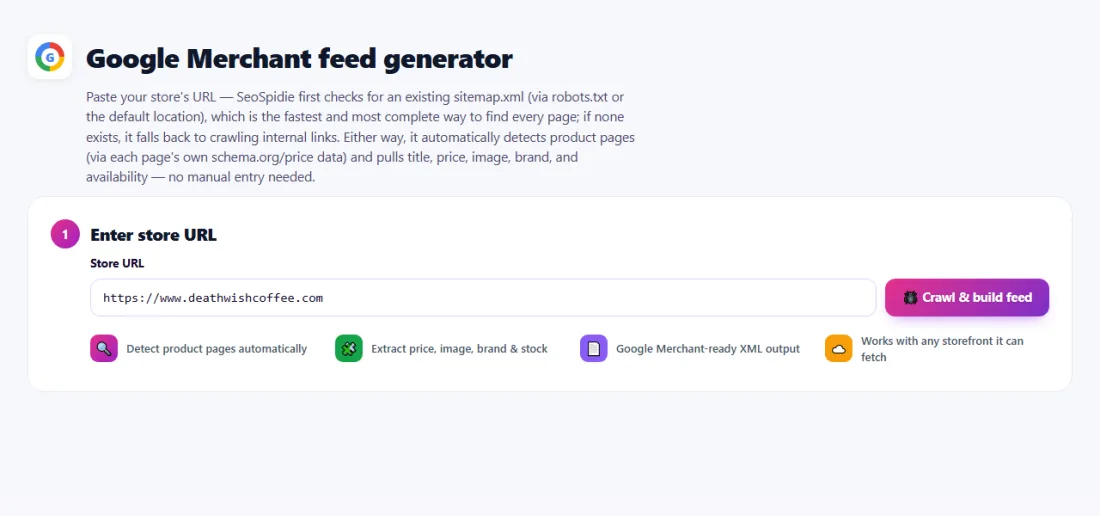
Paste your store's URL — SeoSpidie first checks for an existing sitemap.xml (via robots.txt or the default location), which is the fastest and most complete way to find every page; if none exists, it falls back to crawling internal links. Either way, it automatically detects product pages (via each page's own schema.org/price data) and pulls title, price, image, brand, and availability — no manual entry needed.
Couldn't fetch that page automatically.
Paste its HTML source instead — right-click the page → View Page Source → copy all. If it's a single product page, that one product will be extracted.
A product feed is a structured file that lists every product you sell with its details: an ID, title, description, link, image, price, availability, brand and identifiers such as GTIN. Google Merchant Center reads the feed to show your products in Google Shopping, free product listings across Google, and Shopping ads.
Many stores never create a feed because their platform does not export one, or because building a spreadsheet by hand is slow and error-prone. Products without a feed simply cannot appear in Shopping results — a large missed opportunity, since free listings bring buyers at no cost per click.
A feed also has to stay accurate. Prices and stock change, and Google compares the feed with your product pages. Generating the feed from the product data already on your pages keeps the two in step.
Free product listings and Shopping ads both need a product feed in Google Merchant Center. Generating the XML feed from your live product pages saves hours of manual entry and keeps feed data matching your site — a common cause of disapprovals when it does not.
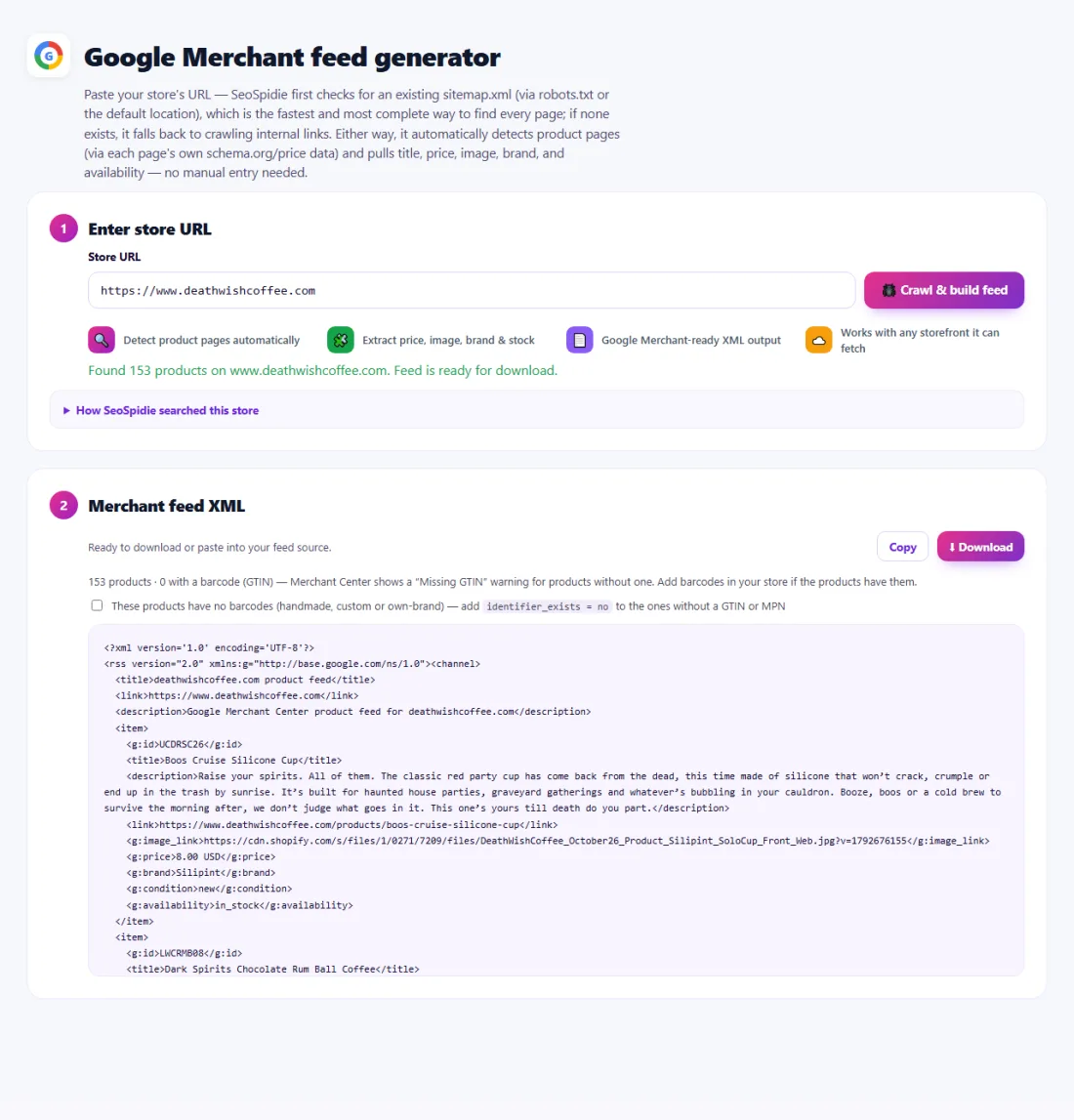
Review the product list before downloading. Products with missing prices or images usually lack structured data on their pages — adding Product schema to your template fixes this for every product at once.
Upload the feed in Merchant Center under Products, then check Diagnostics over the next days. Validate the file first with the Merchant Center Feed Validator to catch problems early.
A ceramics shop in Portugal sold 85 handmade products on a custom website with no feed export, so none of its products appeared in Google Shopping.
The feed generator found the shop's sitemap, opened the product pages and read titles, prices, images and availability from their structured data. Five products had no price detected because their pages lacked product markup; the owner fixed the template, ran the generator again and downloaded the XML feed. After uploading it to Merchant Center, the products began appearing in free listings within days.
It reads schema.org Product data and product meta tags: title, description, price, currency, availability, brand, image and identifiers.
It follows your sitemap first and then crawls links, within time and page limits per run. Very large catalogues are better served by your platform's built-in feed.
Some stores render products with JavaScript or block automated requests. The tool tells you when that is the likely cause.
Yes. Create a free account, verify your website, then add the feed under Products.
Whenever prices or stock change, and at least daily for active stores.
To read other websites, SeoSpidie's server fetches the public URLs you enter and sends the result back to your browser. We don't keep your reports or require an account. Text you paste stays in your browser. Fair-use limits apply to protect the service.
Yes. The Google Merchant Feed Generator is free to use with no sign-up. SeoSpidie is supported by advertising.
 Multi-Channel Feed GeneratorCreate product feeds for multiple sales and discovery channels.
 Facebook Product Feed GeneratorCreate product feeds for Meta and Facebook commerce.
 Pinterest Product Feed GeneratorPrepare product catalogs for Pinterest shopping.
 Google Merchant Center Feed ValidatorValidate product feed structure and identify common issues.