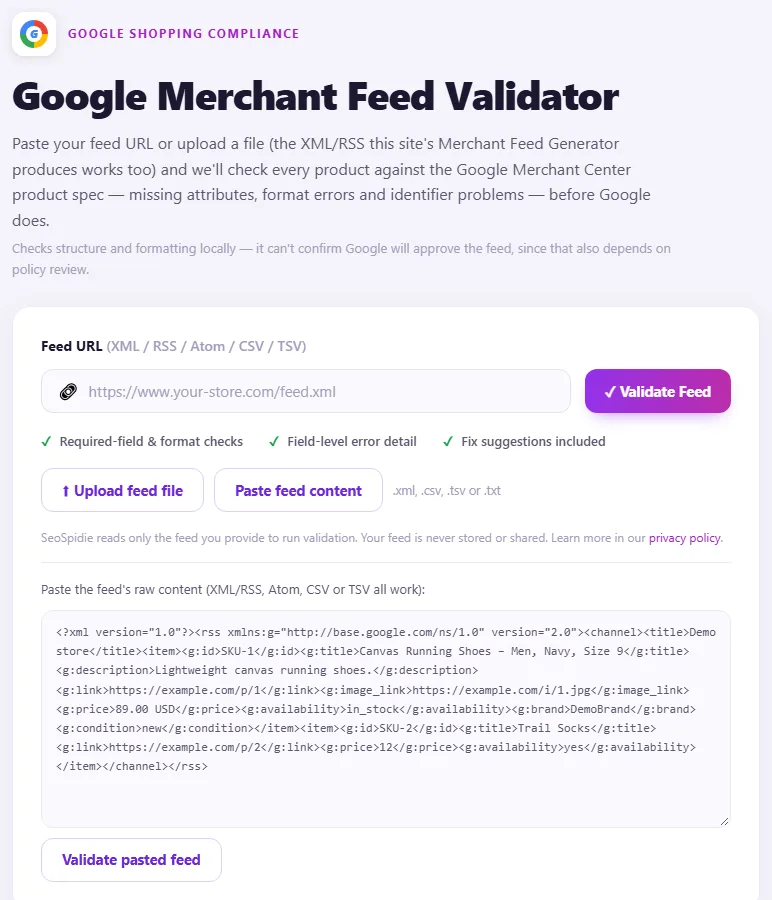
Paste your feed URL or upload a file (the XML/RSS this site's Merchant Feed Generator produces works too) and we'll check every product against the Google Merchant Center product spec — missing attributes, format errors and identifier problems — before Google does.
Works with
Google Merchant Center
Checks structure and formatting locally — it can't confirm Google will approve the feed, since that also depends on policy review.
🔗
✔ Required-field & format checks✔ Field-level error detail✔ Fix suggestions included
.xml, .csv, .tsv or .txt
SeoSpidie reads only the feed you provide to run validation. Your feed is never stored or shared. Learn more in our privacy policy.
Paste the feed's raw content (XML/RSS, Atom, CSV or TSV all work):
Advertisement
How it works
1🔗
Enter feed URL
Paste your feed link, upload the file, or paste its raw content.
2✓
We run the checks
Required fields, value/format rules and GTIN check digits, per item.
3🔍
Review issues
Errors and warnings grouped by attribute, with affected item counts.
4🛠️
Fix & re-validate
Apply the suggested fixes and run it again.
What we check
📋
Required attributes
Checks id, title, description, link, image_link, price, availability and condition are present.
🔢
Value & format checks
Validates price format, GTIN check digits, and availability/condition enum values.
🏷️
Identifier rules
Flags items with no GTIN and no brand+MPN pair, and titles over Google's ~150 character display limit.
🛡️
Structure validation
Confirms the file actually parses as XML/RSS, Atom, CSV or TSV before running item-level checks.
Validates these feed formats
XML (RSS 2.0)Atom 1.0CSVTSV
CSV/TSV columns are matched by header name (id, title, description, link, image_link, price, availability, condition, brand, gtin, mpn) — case-insensitive, with or without a "g:" prefix.
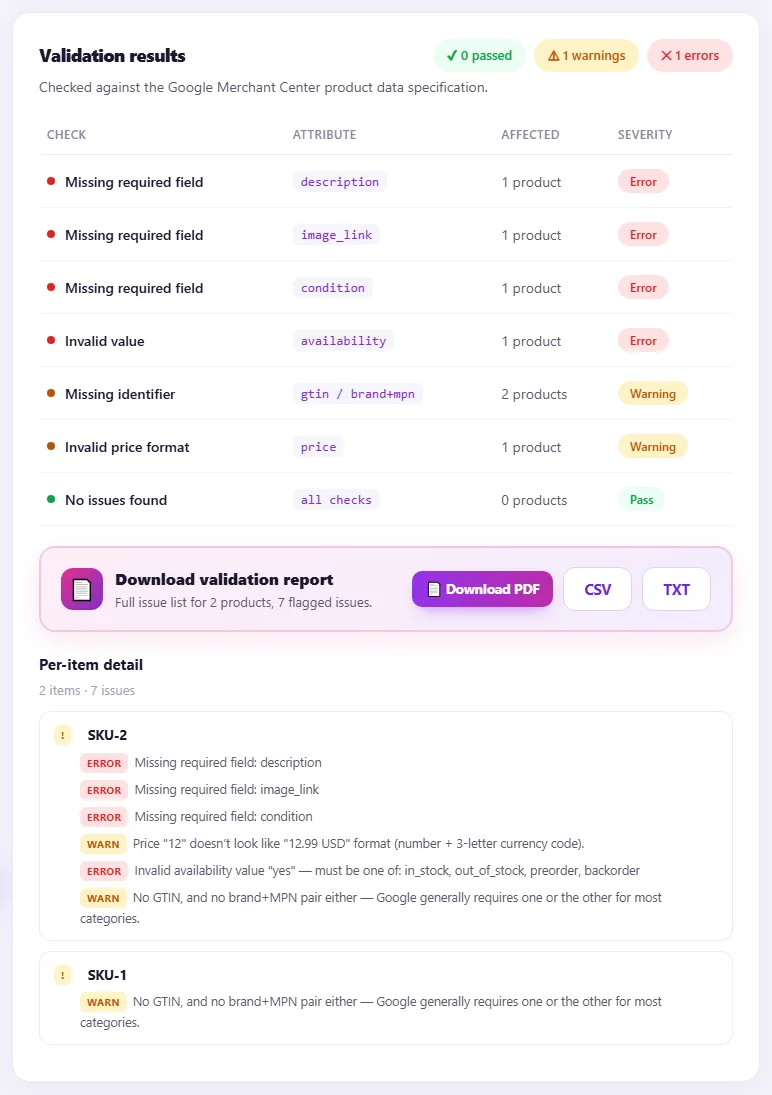
Validation results
No feed validated yet
Checked against the Google Merchant Center product data specification.
Check
Attribute
Affected
Severity
Validate a feed above to see grouped issues here.
📄
Download validation report
Full issue list with fix context.
Per-item detail
Frequently Asked Questions
What does the Google Merchant Feed Validator check?
It validates every item in your feed against the Google Merchant Center product data specification — required attributes, value and format rules (price, GTIN, availability, condition), and identifier rules like the GTIN check digit or a missing brand+MPN pair.
How do I use the validator?
Paste your feed URL and click Validate Feed, or upload the file, or paste its raw XML/RSS, Atom, CSV or TSV content. Review the grouped issues and the per-item detail, then download the full report.
Is the validator free?
Yes — 100% free, no login, no paywall; fair-use limits keep the service fast for everyone.
Is my feed data safe and secure?
We only read the feed you point us to in order to run the checks. We don't store your feed or share it with third parties.
Why validate a product feed?
Google Merchant Center checks every product in your feed against its product data specification. Missing required attributes, wrong formats, invalid identifiers or inconsistent prices lead to warnings and disapprovals, and disapproved products cannot appear in Shopping results or ads.
Finding these problems only after uploading wastes days: Merchant Center needs time to process a feed, and repeated issues can lead to account warnings. Validating the file before upload catches most problems in seconds.
Common issues include missing brand or GTIN, prices without a currency, invalid availability values, image links that do not load, titles that are too long and missing shipping information for certain countries.
Why use the Google Merchant Feed Validator?
Merchant Center rejects or limits products with missing attributes, bad formats or broken images — and you often find out only after the feed is processed. Validating first lets you fix every problem in one pass.
How to use it
Paste your feed URL or the feed content (XML or CSV).
Run validation against Google's product data requirements.
Work through the errors first, then the warnings, and re-validate.
Tips for better results
Errors block products; warnings limit performance — fix both when you can.
Image links must be direct, crawlable image URLs, not pages.
Titles over 150 characters are cut off; put the important words first.
Step by step, with screenshots
1Paste your feed (or its URL, or upload the file).
2Every product is checked against Google's requirements — errors first, then warnings.
Features of the Google Merchant Feed Validator
Feed URL or file. Validate an online feed or paste the content.
XML and CSV support. Including feeds created by SeoSpidie's feed generators.
Errors and warnings. Problems sorted by how serious they are.
Per-product detail. See which products and attributes need fixing.
Who is it for?
Store owners: check feeds before uploading to Merchant Center.
Feed managers: catch problems after catalogue changes.
Agencies: audit client feeds quickly.
Developers: test feed exports from custom platforms.
Understanding your results
Fix errors first — they cause disapprovals. Warnings can limit performance but usually do not block products. After fixing, validate again until the errors are gone.
Some checks, such as whether the price matches the live page, can only be confirmed by Merchant Center itself, so keep an eye on its Diagnostics after upload.
Example: catching errors before upload
An electronics retailer in Poland exported a new feed of 1,200 products from its warehouse system.
The feed validator found 140 products without a brand, 60 with prices missing the currency code and 25 with invalid availability values such as "yes". The team fixed the export mapping rather than editing rows by hand, re-validated until the errors were gone, and then uploaded the feed — avoiding a wave of disapprovals in Merchant Center.
Common mistakes to avoid
Ignoring warnings that limit how often products show.
Fixing the feed but not the source data.
Testing a sample instead of the full feed.
Assuming a valid feed guarantees approval of every product.
More questions about the Google Merchant Feed Validator
What is the difference between an error and a warning?
Errors usually cause disapprovals; warnings can limit how often products show but do not block them.
Does validation guarantee approval?
No. Merchant Center also checks landing pages, prices and policies, so review its diagnostics after uploading.