Free SEO extension 🔥

Robots.txt generator

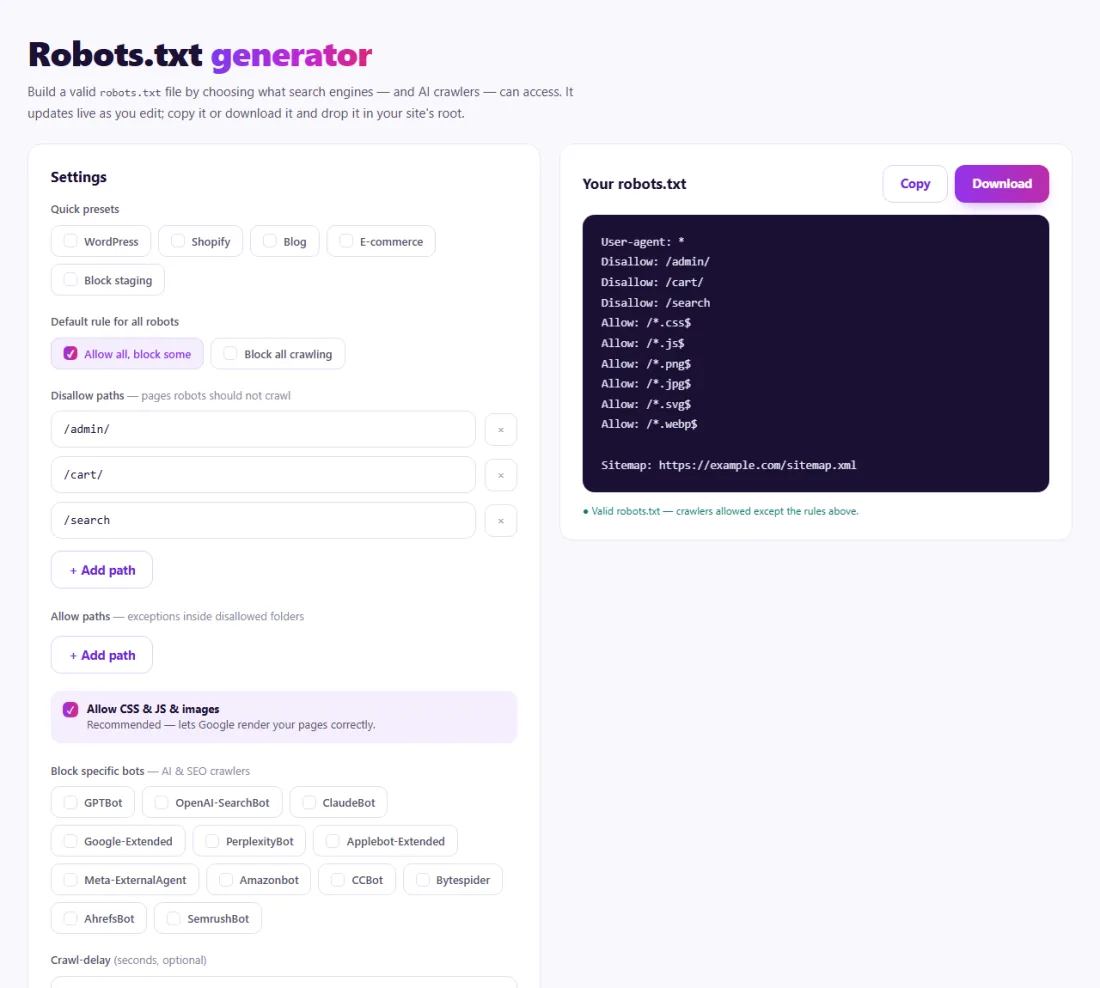
Build a valid robots.txt file by choosing what search engines — and AI crawlers — can access. It updates live as you edit; copy it or download it and drop it in your site's root.

Works with
  • Google
  • Bing
  • OpenAI GPTBot
  • Anthropic ClaudeBot
Settings
Allow CSS & JS & images
Recommended — lets Google render your pages correctly.
Your robots.txt


Frequently Asked Questions

What is a robots.txt file?

A robots.txt file is a small plain-text file that sits at the root of your domain, for example example.com/robots.txt. Before a well-behaved crawler such as Googlebot, Bingbot or GPTBot visits your pages, it reads this file to learn which parts of the site it is allowed to request. Each group of rules starts with a User-agent line naming the crawler, followed by Allow and Disallow lines that list URL paths.

Robots.txt controls crawling, not indexing. If you disallow a page, search engines will usually stop fetching it, but the URL can still appear in results when other sites link to it. To keep a page out of search results, let it be crawled and add a noindex tag instead. Robots.txt is best used to keep crawlers away from areas that waste their time: admin screens, internal search results, cart and checkout pages, and endless filter combinations.

The file also has a second job: a Sitemap line tells every crawler where your XML sitemap lives. In recent years robots.txt has become the main way site owners decide which AI crawlers may read their content, because companies such as OpenAI, Anthropic, Google and Perplexity publish separate user-agent names for their bots.

Why use the Robots.txt Generator?

robots.txt is the first file well-behaved crawlers read. It tells them which areas to skip — admin pages, internal search, duplicate filters — and where your sitemap is. One wrong line can hide an entire site from search, so it pays to build it carefully.
How to use it

  1. Choose the default rule for all crawlers.
  2. Add disallowed paths, AI-bot rules and your sitemap URL.
  3. Copy or download the file and upload it as /robots.txt at your domain root.

Tips for better results

  • Never block CSS or JavaScript files that pages need to render.
  • robots.txt controls crawling, not indexing — use noindex to keep a page out of results.
  • Test changes with the robots.txt report in Google Search Console.

Step by step, with screenshots

  1. 1Choose the rules for search engines and AI crawlers — the file builds live, ready to copy or download.
    Step 1: Choose the rules for search engines and AI crawlers — the file builds live, ready to copy or download.

Features of the Robots.txt Generator

  • Live preview. The file updates as you change any setting, so you always see the exact text you will upload.
  • Default rule for all crawlers. Start from "allow everything" or "block everything" and add exceptions from there.
  • Disallowed paths. Add the folders and pages crawlers should skip, one path per line.
  • AI crawler controls. Allow or block AI bots individually instead of writing their user-agent names by hand.
  • Sitemap line. Add your sitemap URL so every crawler can find it.
  • Copy or download. Copy the text or download a ready-made robots.txt file. Everything runs in your browser.

Who is it for?

  • Website owners: create a correct robots.txt for a new site without learning the syntax.
  • Online stores: keep crawlers out of cart, checkout, account and filter URLs so they spend time on products.
  • Publishers: decide which AI crawlers may read your articles.
  • Developers and agencies: produce a clean starting file for client sites in a minute.

Understanding your results

The generated file is plain text. Each User-agent group applies to the crawler it names; a group for "*" applies to every crawler that has no group of its own. Within a group, the most specific matching rule wins, and Allow wins a tie.

After uploading, open yourdomain.com/robots.txt in a browser to confirm it is live, then check the robots.txt report in Google Search Console. If a page you care about later shows "Blocked by robots.txt" in Search Console, find the rule that matches its path and narrow it.

Example: an online furniture store

A furniture shop in Manchester noticed in Search Console that Google was crawling thousands of filter URLs — every combination of colour, material and price — while new products took weeks to appear. Its robots.txt contained only a sitemap line.

Using the generator, the owner kept the default "allow" rule, added disallowed paths for /cart/, /checkout/, /account/ and the ?filter= parameter, and added the sitemap URL. They allowed search-related AI crawlers but blocked training-only bots. After uploading the file and checking it at /robots.txt, crawl reports over the following weeks showed far fewer requests to filter pages and faster discovery of new products.

Common mistakes to avoid

  • Leaving "Disallow: /" in place after launching a site that was built on a staging server.
  • Blocking CSS or JavaScript files that pages need to render correctly.
  • Using robots.txt to hide private pages — the file is public, so it advertises the paths you list.
  • Expecting a disallow rule to remove a page from Google; use noindex for that.
  • Uploading the file to a subfolder; it only works at the root of the domain.

More questions about the Robots.txt Generator

Where do I upload robots.txt?

At the root of your domain, so it opens at yourdomain.com/robots.txt. Each subdomain needs its own file. A robots.txt placed in a subfolder is ignored.

How quickly do search engines notice changes?

Google usually refreshes its copy of robots.txt within about a day. You can check the version Google has read in the robots.txt report in Search Console.

Can robots.txt block AI crawlers?

Yes, for crawlers that respect it. AI companies publish user-agent names for their bots, and you can allow or disallow each one. It is a request, not access control, so truly private content needs a login.


From the blog
Duplicate Without User-Selected Canonical: What It Means and How to Fix It
Why Search Console reports duplicates with no chosen canonical, when it matters, and the fixes that settle it.
AI Crawler Checker: See Which AI Bots Can Crawl Your Website
Check, bot by bot, which AI crawlers your robots.txt allows or blocks, and create a starter llms.txt in the same place.
How to Find Low Competition Keywords for a New Website
A free, practical method to spot keywords where the current results are weak, so a new site can rank sooner.
Core Web Vitals Explained for Beginners: LCP, INP and CLS
What LCP, INP and CLS measure, the scores to aim for, and the simple fixes that make the biggest difference.
How to Update Old Blog Posts to Improve Rankings
A repeatable process for choosing which old posts to refresh and what to change so they climb back up.
Local Business Schema Markup: Example and Step-by-Step Setup
What LocalBusiness schema includes, a field-by-field example, choosing the right subtype and testing it properly.
How to Check If a Page Is Indexed by Google (4 Free Ways)
Four free ways to see whether Google has indexed a page, and what to do when it has not.
One Product Feed for Multiple Channels: Google, Facebook, Pinterest and More
How to manage one source of product data and export consistent feeds to every sales channel, without errors.
How Long Should a Blog Post Be for SEO? An Honest Answer
Why there is no magic word count, and how to decide the right length for each post from what searchers actually need.
How to Get Backlinks for a New Website (Free, Safe Methods)
Practical, free and policy-safe ways to earn your first backlinks, and the shortcuts that can get a new site penalised.